Electronic Team uses cookies to personalize your experience on our website. By continuing to use this site, you agree to our cookie policy. Click here to learn more.
Start your free trial today7-day Trial • Easy to use • Cancel anytime
Donglify is a USB sharing hub or software that offers one of the most secure and reliable ways to share a USB between two PCs. This professional tool allows you to access a USB dongle remotely.
Start your free trial today
7-day Trial Cancel anytime Windows 7/8/10/11, Server 2008 R2/2012/2016/2019/2022/2025, Windows 10/11 on ARM, macOS 10.15+
Multi-Connect: Multiple users can access and use one USB dongle simultaneously.
No Hardware Restrictions: Donglify doesn’t have distance and port limitations, unlike wired dongle hubs.
Durability & Security: Due to the centralized dongle, you don't unplug and replug your USB dongle into different computers. This helps minimize wear and safeguards the device from physical damage.
If this sounds good, get started with Donglify by following this guide thoroughly as we learn how to share a USB dongle between 2 computers in your network (wired or Wi-Fi). The process remains the same for both.
How Donglify Works
With Donglify, when you plug your USB dongle into one computer (host or server), the other computers (clients) can access the dongle over a local network or the internet, as if it’s connected physically to those computers. This way, Donglify essentially creates a virtual connection between computers.
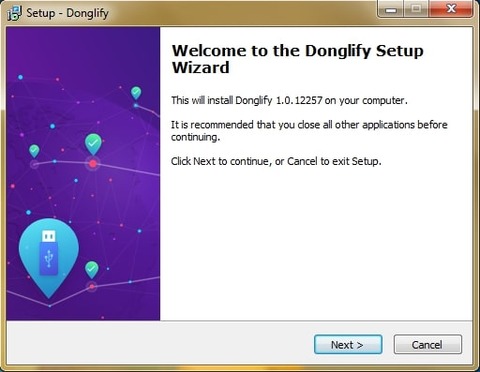
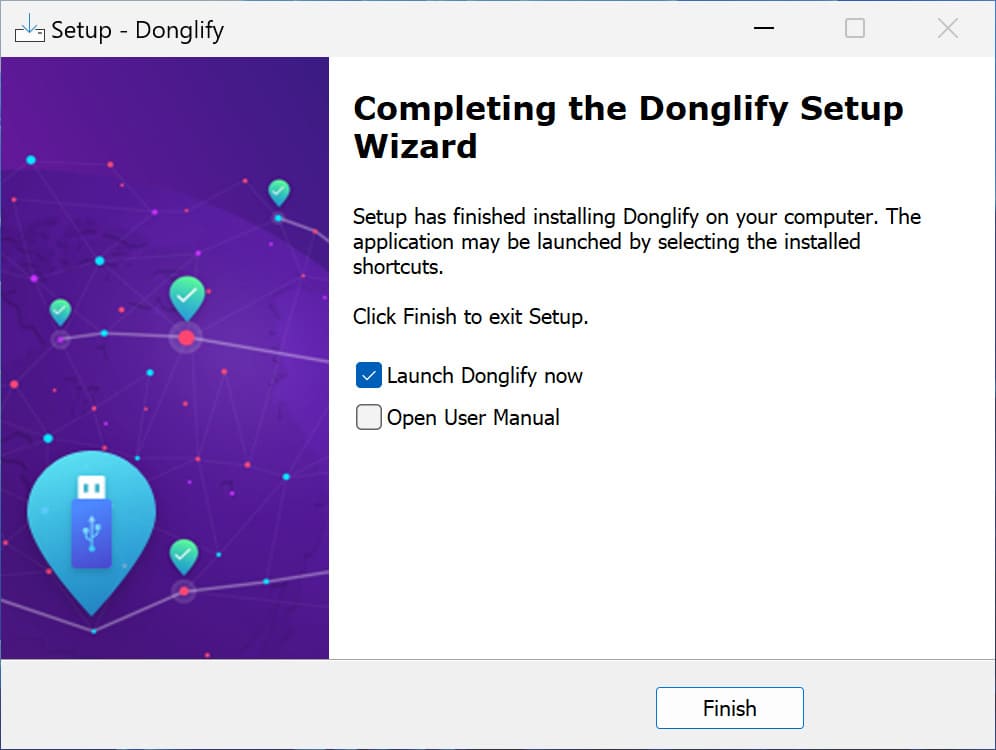
• Next, download the Donglify app and install it on all the computers where you want to access your USB dongle remotely.
Make sure you have installed the Donglify software on the computer where the physical USB dongle device is connected directly. This is also called the device server.
Step 2: Launch Donglify
2
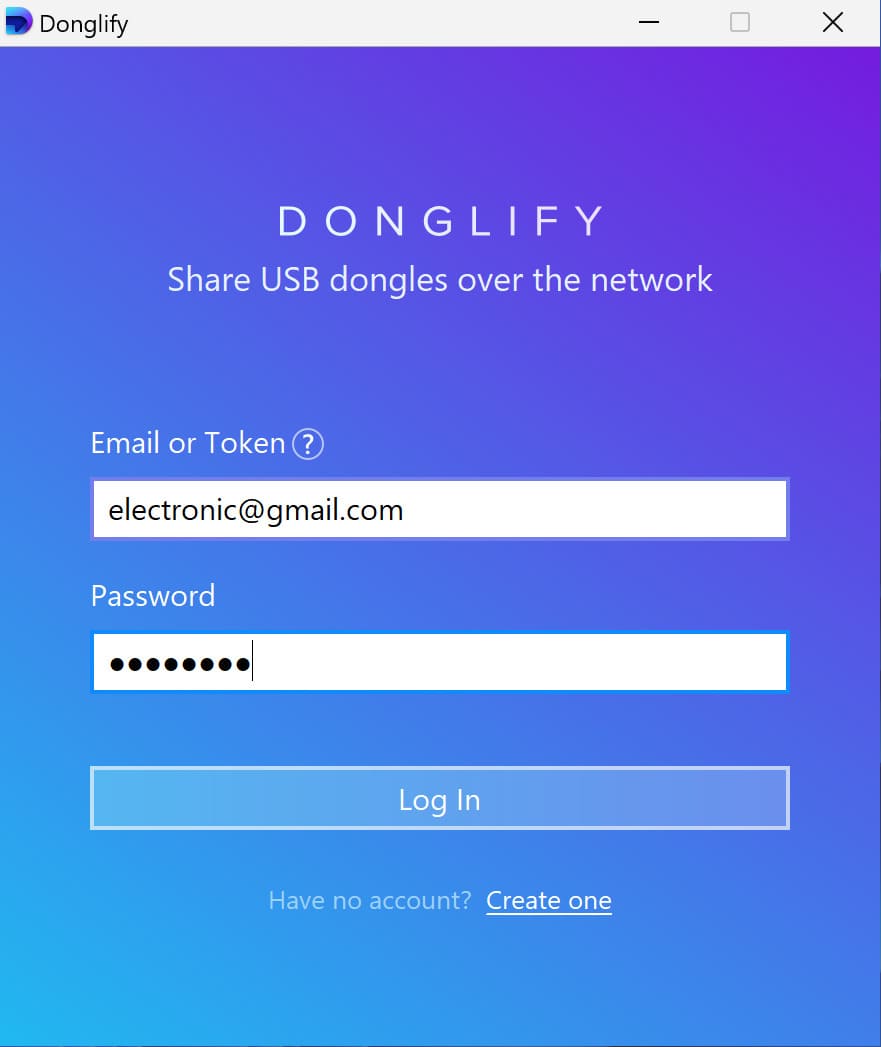
Once the Donglify software is installed, launch it on the server computer. Next, sign in to your account.
Step 3: Look for Available Dongles
3
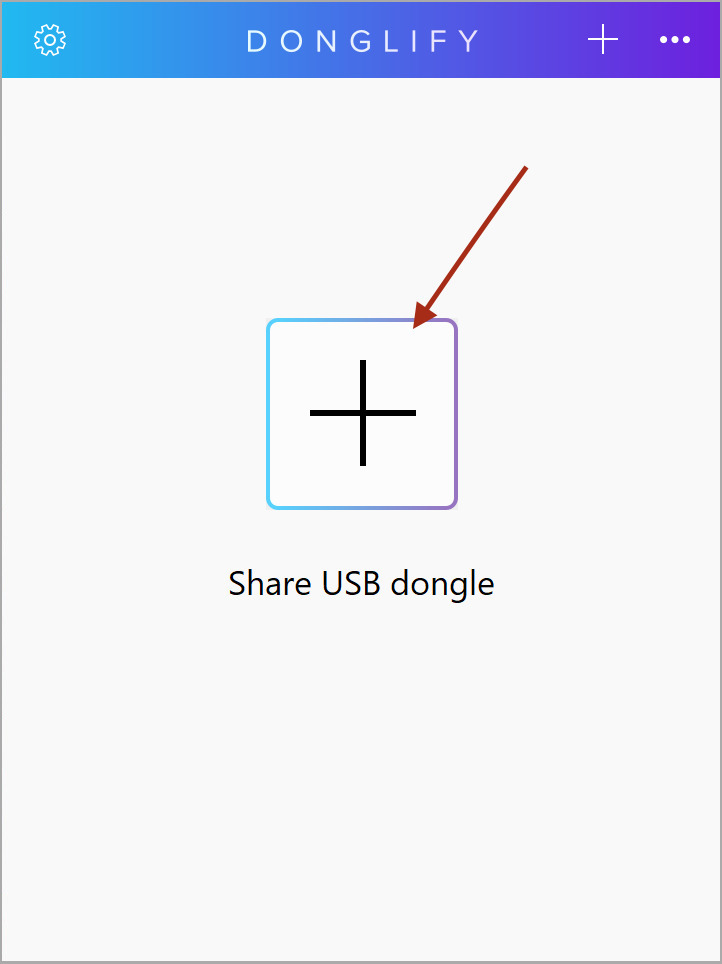
After you log in, a window will open. Locate the “Plus” icon and click it. It will display all the USB dongles available to be shared.
Step 4: Look for Multi-Connect or Single-Connect
4
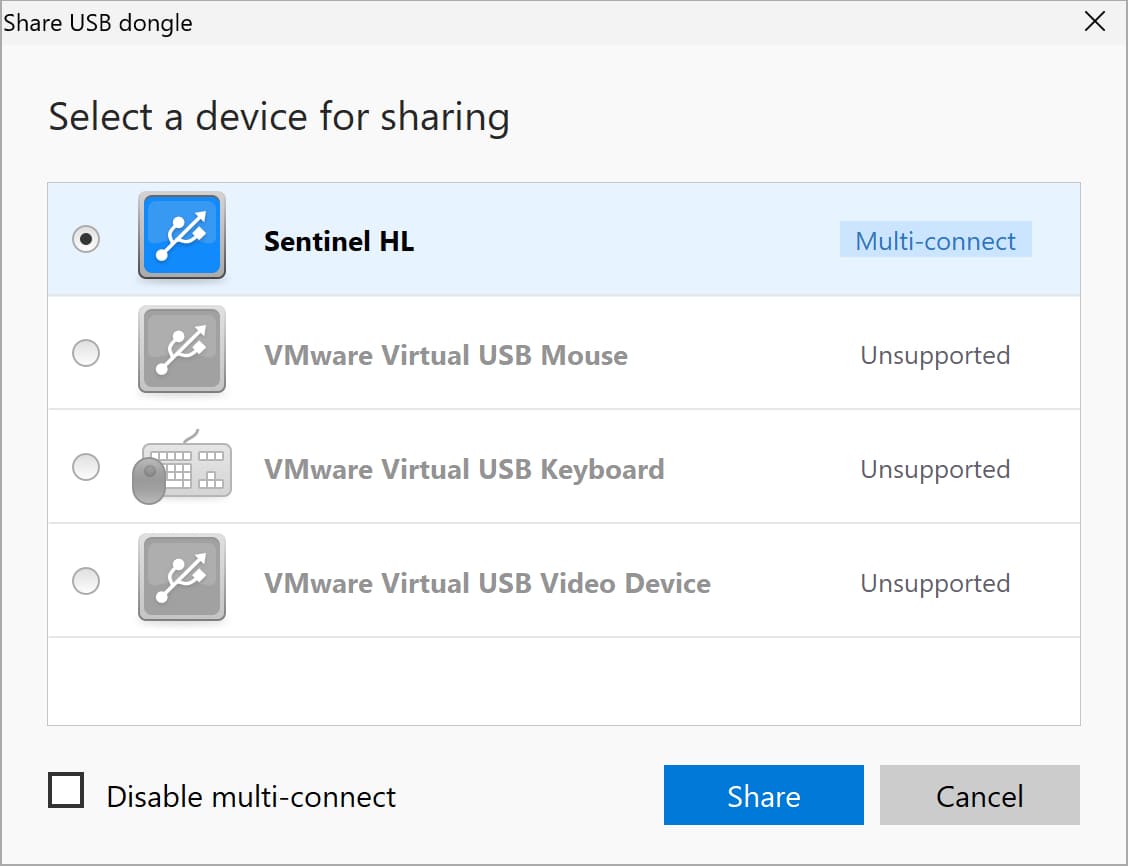
Next to the USB dongle you want to share, look for the “Multi-connect” or “Single-connect” icon. Here’s what they mean:
• Multi-connect: It means that several remote computers can share and access a USB dongle simultaneously.
• Single-connect: It means that you can use a shared dongle on one computer at a time.
Step 5: Select a USB Dongle
5
Now, you will need to choose one of the USB dongles that you wish to share. To do this, check the radio button next to the dongle name and click “Share”.
Step 6: Sign in on the client computer
6
Open the Donglify application on a client computer. Sign in with the same account as before.
Step 7: Look for available devices
7
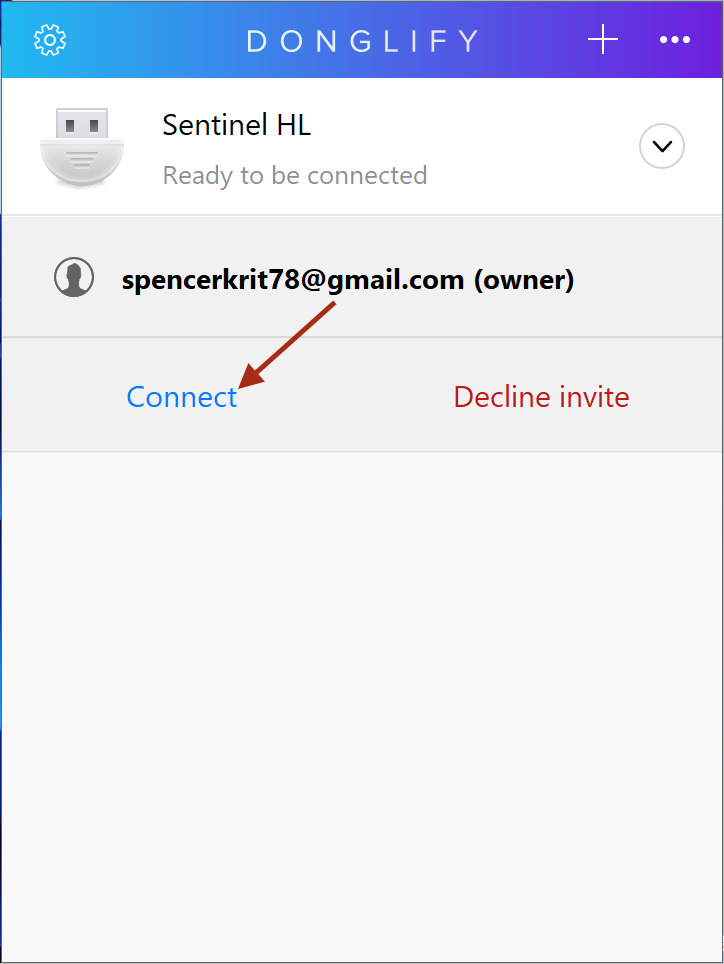
In the Donglify application window, you can see a list of devices available to be connected and shared.
Step 8: Connect with a device
8
Choose one of the devices available and click “Connect”.
Once you hit “Connect”, you can see the shared USB dongle appearing on the remote computer as if it were connected physically to it.
This way, Donglify makes it effortless to access your USB security dongles from anywhere on your network.
For more information, watch this video guide to learn how to share USB dongles without unplugging over a network:
This is how the second computer recognizes the USB dongle as if it were attached physically to the computer.
Note: Donglify also allows you to share your USB dongle with multiple computers simultaneously, based on the license type you have chosen.