Electronic Team uses cookies to personalize your experience on our website. By continuing to use this site, you agree to our cookie policy. Click here to learn more.
 Olga Weis
• Dec 3, 2025
Olga Weis
• Dec 3, 2025
Contents
Remote work is here to stay, and with it comes the need for seamless access to critical tools and software from anywhere. For many professionals, USB dongles and USB security keys are essential for software licensing, authentication, and security. However, accessing these devices remotely over RDP is a challenge, since the protocol doesn't natively support USB dongle redirection.
In this article, we'll explore the best solutions for redirecting USB dongles over RDP, with a particular focus on Donglify - a powerful tool that ensures that dongles and security keys remain accessible during remote sessions. We’ll also compare Donglify to other options like RemoteFX and highlight their limitations.
In an industry where USB dongles are used for licensing or security, working remotely is impossible without some way to access these devices. A typical RDP environment will get you connected to your workstation, and even allow you to access basic peripherals, including printers, storage devices, and smart cards.
However, RDP is mostly incapable of forwarding specialized, driver-dependent USB devices, which includes dongles. If you need to use a dongle remotely, you’ll need a solution designed specifically for them.
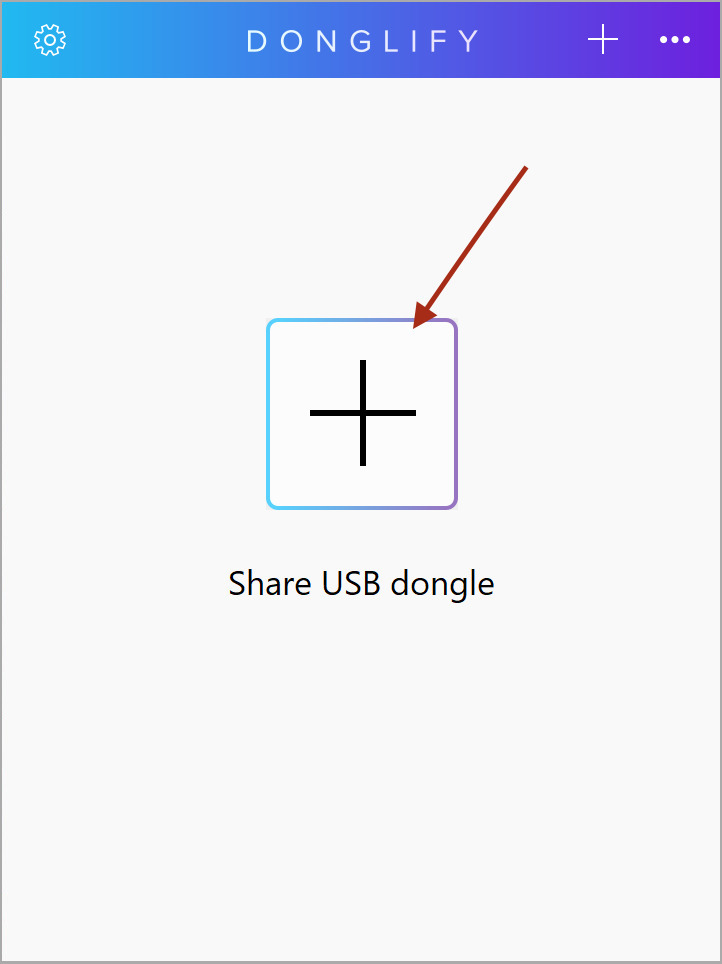
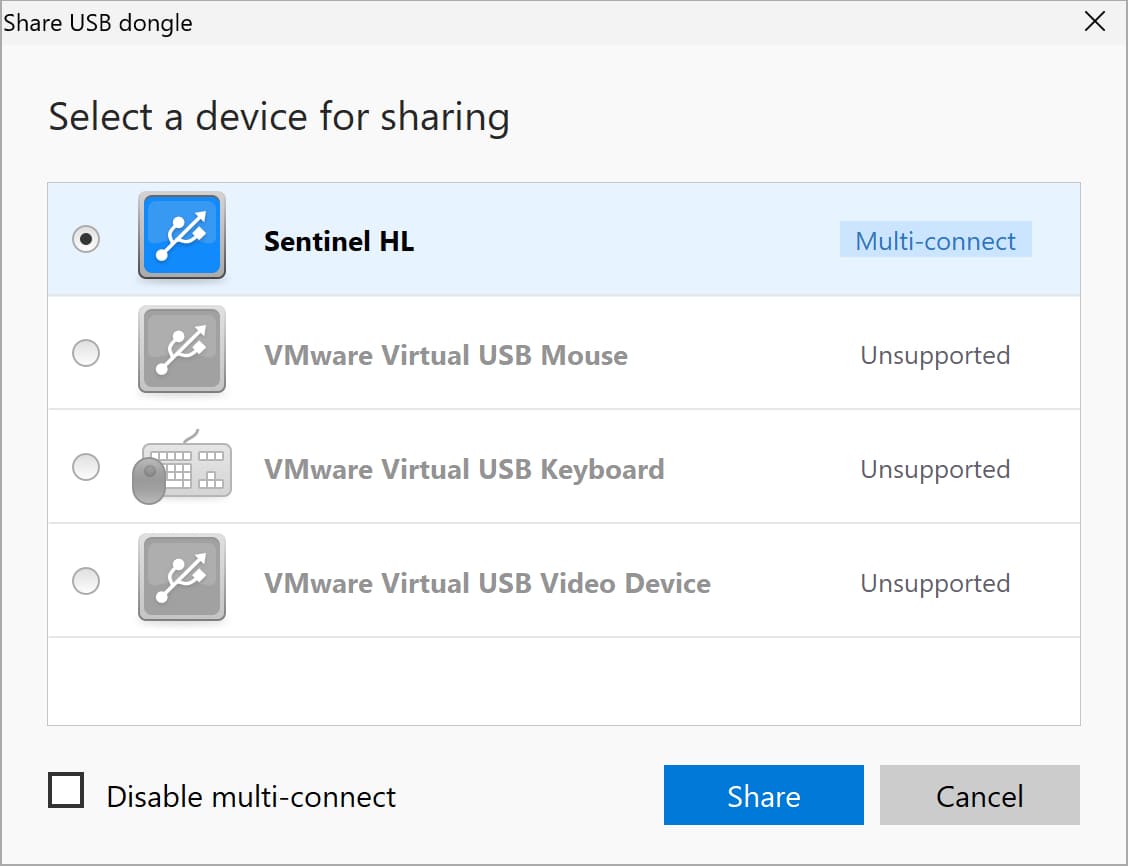
By using Donglify, you can make a USB license key plugged into a local machine available for connection from a remote computer. When USB dongles are shared to a remote desktop, the software makes them appear as if they are attached directly to the specified machine.
With Donglify, you’ll never find yourself in a situation when you cannot launch a licensed app on the remote desktop as a USB dongle is not working. You won’t have issues with any other USB dongles unrecognized via RDP. Redirecting them from your local machine to a remote desktop has never been this easy.
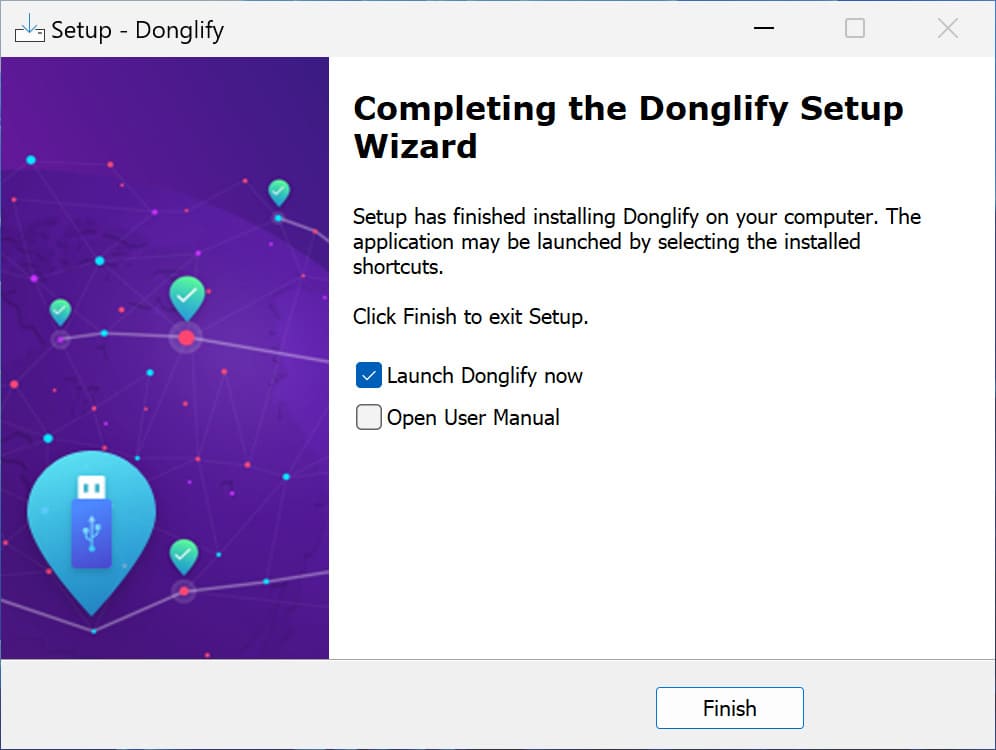
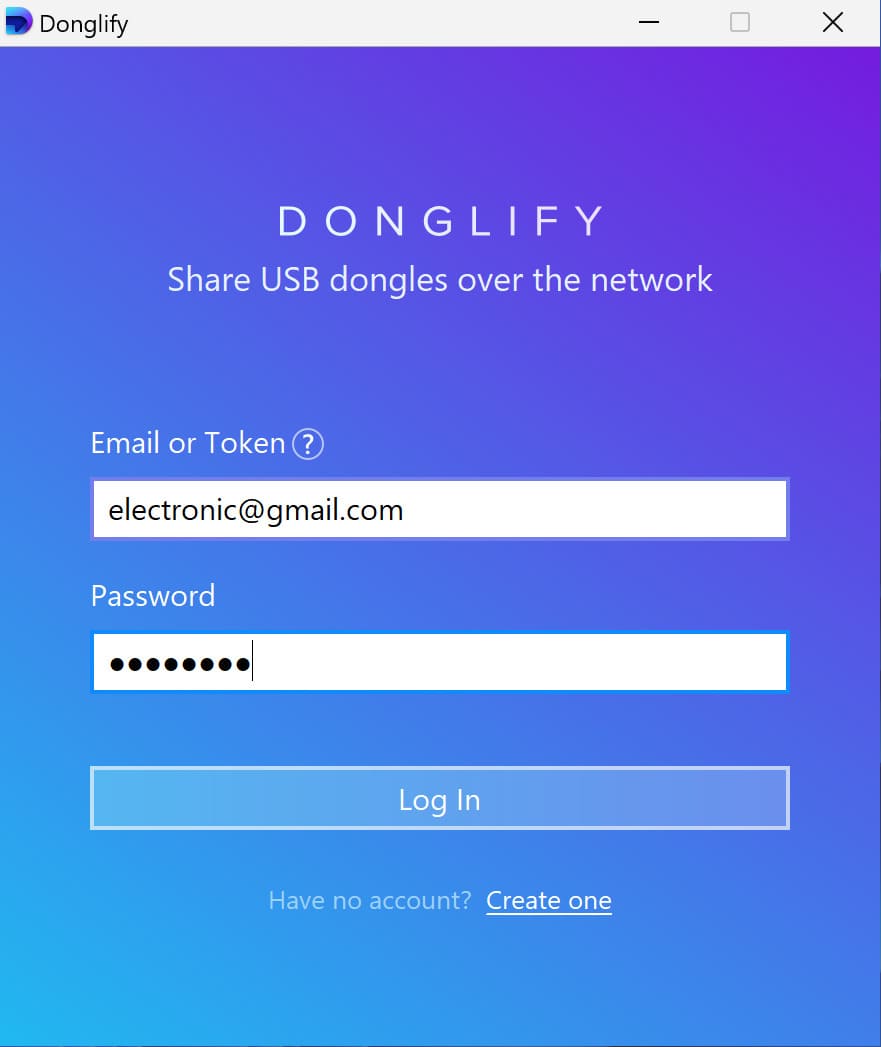
Donglify is fully compatible with most USB dongle brands and models. What’s more, it’s an extremely easy-to-use app. Just install it, and you’re good to go, with no time-sapping configuration process.
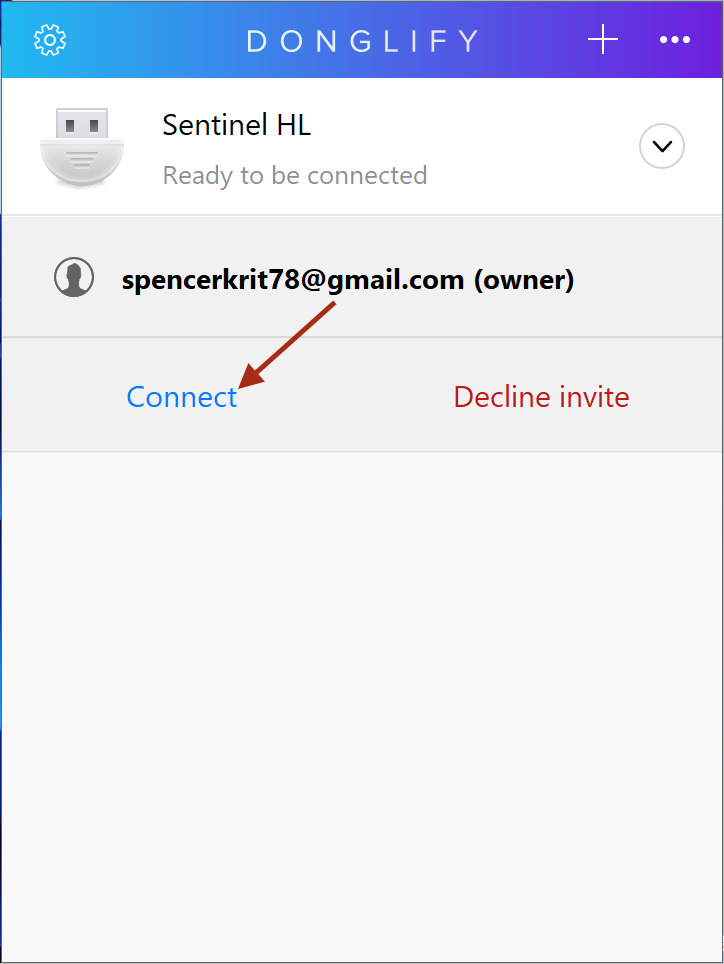
Connecting certificate tokens to a remote desktop is another frequent problem. They can be accessed and managed only if they are physically attached to your local machine. That means, if you need to read a certificate from a token connected to some other machine, you’ll have to go and replug it into your own.
The best way around it is using Donglify to connect the digital signature tokens to the RDP sessions so that you will still be able to digitally sign any documents you need.
It often happens that several users located in different premises need access to a particular license dongle over RDP.
With Donglify, you can plug a USB license key into a single server, and assign the same dongle to be used by multiple clients at the same time. This way, you and your team will always have access to the USB devices that you need, whenever you need them.
When you insert a device into your local machine’s USB port, Donglify connects a dongle to a remote desktop session over a TCP/IP protocol.
Donglify will ensure that the remote connection is protected: the 2048-bit SSL encryption protocol makes sure that all your network data transfer is safe.
There’s no need for extra gadgets, cables, apps, etc. to connect to a USB license dongle from a remote desktop or access a dongle plugged into one computer from another machine across the network.
You can share your Donglify account with other users without exposing your login credentials. Just create a digital token and pass it to whomever you want and they'll be able to use it as a secure digital key to log into your account instead of entering email and password.
While Donglify is a robust solution for USB dongle redirection, there are other options, including RemoteFX - a built-in feature that’s available on Windows Server and Windows 10/11 Pro for Workstations.
RemoteFX is intended to expand the range of USB devices that can be redirected to virtual desktops. However, RemoteFX can struggle with complex USB dongles and security keys.
Limitations of RemoteFX:
|
Feature
|

Donglify
|

RemoteFX
|
|---|---|---|
| USB Dongle Redirection | Seamless redirection of USB dongles | Limited, may not work for all devices |
| Multi-User Access | Yes, allows multiple users to access a single dongle | No, typically one user per dongle |
| Ease of Use | Simple installation and setup | Requires complex configuration |
| Platform Support | Windows, Mac, Linux | Primarily for virtual environments |
| Security | Encrypted connection | Security varies depending on setup |
While RemoteFX might be suitable in virtualized environments, Donglify provides a more flexible and reliable solution for USB dongle redirection—especially for those using physical machines or needing multi-user access.
If you rely on USB dongles for software licensing, security keys, or other critical tools, Donglify is the best solution for redirecting these devices over RDP. With easy setup, multi-user access, and encrypted connections, Donglify ensures that your USB dongles continue to work flawlessly, regardless of your location. While RemoteFX might offer some USB redirection in virtualized environments, Donglify is the most reliable, flexible, and user-friendly option for professionals working remotely.
Don’t let the limitations of RDP hold you back - Donglify makes remote work easier, safer, and more efficient.