Electronic Team uses cookies to personalize your experience on our website. By continuing to use this site, you agree to our cookie policy. Click here to learn more.
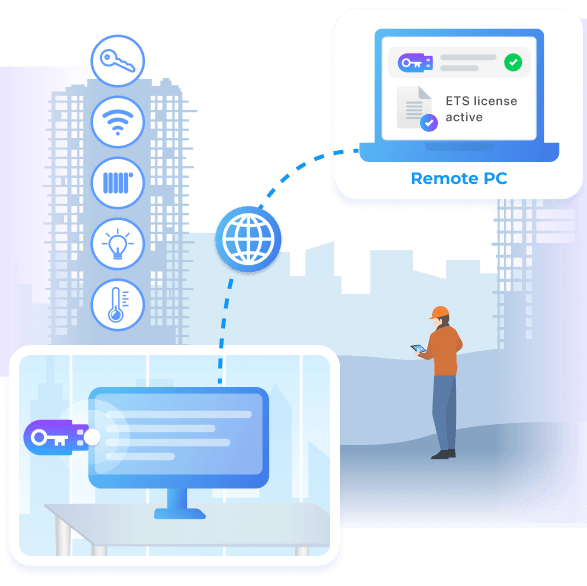
Keep the ETS dongle at the office and work from any site
Donglify gives you access to your KNX licensing dongle from another computer over the Internet. The dongle stays at the office, and ETS reads it from a site laptop, a virtual machine, or a Remote Desktop session. A dongle-based ETS6 license works offline, but only while the dongle is plugged into the PC running ETS, so Donglify removes that limit.
4.5
rank based on 198+ users
Available on macOS 10.15+, Windows 7/8/10/11, Server 2008 R2/2012/2016/2019/2022, Windows 10/11 on ARM
A dongle-based ETS6 license works offline, but the dongle has to sit in the PC running ETS, even when you are on site or ETS runs in a virtual machine or over Remote Desktop. These are the cases that come up.
The dongle must be in the ETS PC
A dongle license works offline, but only while the dongle is plugged into the same machine running ETS.
On site, away from the dongle
You are at the building and the dongle is at the office, so a site laptop over VPN cannot see it.
ETS in a VM or over RDP
You run ETS in a virtual machine or over Remote Desktop, where the USB dongle does not appear.
One dongle, several engineers
A single dongle has to serve more than one project engineer who needs the license to work.
Donglify makes the dongle reachable from every job
The dongle stays at the office, and you connect to it over the Internet or a VPN. ETS runs with your license on a site laptop, a virtual machine, or a Remote Desktop session.
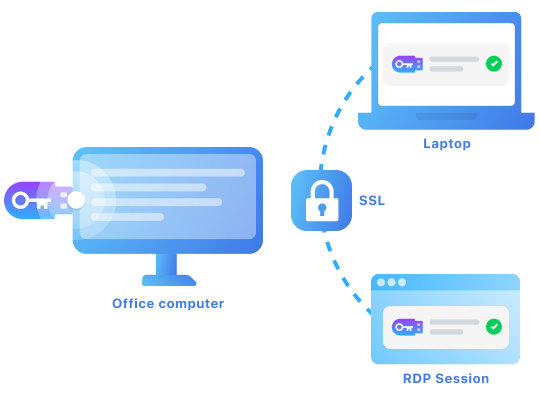
The dongle stays at the office
Leave the dongle plugged in at the office and connect to it from a site laptop over VPN while you commission.
Works with ETS in a VM or over RDP
Forward the dongle into a virtual machine or Remote Desktop session, where a USB dongle normally cannot be seen.
Shared across the team
Several project engineers reach the same dongle across jobs, with access you grant and revoke per person.
Share a USB dongle in four steps
You set it up once, then the dongle is reachable over the Internet from any machine, including a virtual machine or a Remote Desktop session.
1
Sign up
Create a Donglify account and start the free demo.
2
Install
Install Donglify on the machine that holds the dongle and on each machine that needs it.
3
Share
Plug in the USB dongle, click the plus button, and select the dongle to share.
4
Connect
On the other machine, click Connect. The dongle works as if it were plugged in locally.
Works with your USB dongle
Donglify works with your KNX licensing dongle. It forwards the dongle over the Internet or a VPN, including to a site laptop, into a Remote Desktop session, or into a virtual machine running ETS. The dongle stays plugged in at the office while ETS runs with your license wherever you are working.
How KNX integrators use it
On site over VPN
An integrator commissions on site over VPN while the dongle stays at the office.
ETS in a virtual machine
ETS runs in a virtual machine or over Remote Desktop, and the dongle is forwarded in so it stays licensed.
Shared license
Several project engineers reach one dongle across jobs, with access granted per person.
Why KNX integrators use Donglify
Secure communication
2048-bit SSL encryption protects every shared dongle.
Acts like a local dongle
The software reads the remote dongle as if it were plugged into the same machine.
Reach it from several machines
One dongle can be available to more than one machine.
Access you control
Grant access per user and revoke it at any time.
What customers say
Donglify is the true savior for the hardware key we use to access our printer station. We used to physically reattach the poor thing from my colleague’s PC into mine and beck every time one of us had a printing job. And that’s far more than a dozen times every single business day. Now, we rely on dongle sharing, and whoever needs the printer just connects to the key over the network. The printer’s software sees no difference at all.
Rafael West
I used Donglify to help a client with a remote setup for their licensed software. Instead of physically shipping USB dongles, I connected them remotely using this tool. It saved a lot of time and effort. The software is user-friendly and provides a stable connection. Donglify is an excellent tool for anyone managing USB dongles in remote environments.
Ahmed Khan, Technical Support Engineer
Donglify was a perfect solution for sharing a USB dongle among my development team. We needed access to a single hardware license key for testing across different systems, and Donglify allowed us to use it remotely without any hassle. Its encryption feature gave us peace of mind, knowing the connection was secure. Highly recommended for distributed teams!
What customers say